
How can we help?
Everything you want to know about Matterport scans, features, planning and pricing, search below, or jump straight to a topic.
Browse by category
32 articles across 5 topics
Features
Tags, labels, measurement, story mode and more.
12 questions → 02Technology
Cameras, devices, VR headsets and compliance.
5 questions → 03Planning & Recording
Scheduling, prepping your venue, and scan day.
9 questions → 04Pricing & Add-ons
Quotes, floor plans, and CAD file packages.
3 questions → 05Hosting & Management
Go-live times, hosting, and updates over time.
3 questions →Features
What are Matterport tags?
Matterport tags, sometimes called Mattertags, are interactive information points anchored to a specific spot inside the 3D tour. Visitors see a small coloured circle floating on the relevant object or area, and clicking it opens a panel with a short title and description.

Each tag can hold more than plain text. You can add photos, a clickable link to a webpage, or an embedded video, which makes them useful for explaining a feature, showcasing a product, or sending visitors straight to a booking page or product sheet. Because a tag is fixed to a point in the model, it stays in place and can be seen from different viewpoints as visitors move through the space.
In practice we use tags to label products in a showroom, point out amenities in a hotel or venue, highlight technical details in a real estate property, or guide visitors to extra information they would otherwise miss. Tags can be switched on or off and reorganised at any time, so the tour stays up to date as your offering changes.
What are Matterport Labels?
Matterport Labels are fixed text labels that stay visible in the model without any interaction. Where a tag has to be clicked to reveal its content, a Label simply shows a short piece of text in place, which makes it ideal for naming rooms and spaces so visitors always know where they are.
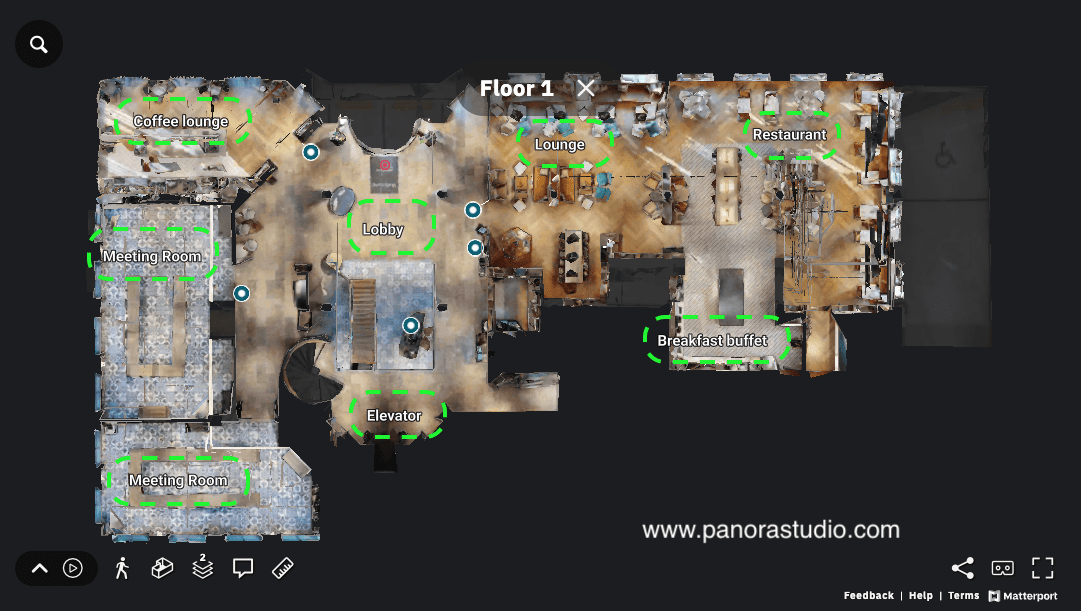
Labels are especially useful in larger buildings such as hotels, conference centres, and offices, where a guest moving through the tour benefits from seeing names like Ballroom, Boardroom, or Presidential Suite directly on screen. They also work well for marking areas at a glance, for example showing the function of a zone, indicating where facilities are located, or flagging spaces still to be built in a renovation project.
Because Labels are kept short and are meant for orientation rather than detail, we often combine them with tags. Labels give visitors the overview of what each space is called, while tags carry the richer information such as photos, links, and descriptions for the features that deserve a closer look.
Digital measurement in Matterport, how does it work and what can you do with it?
In the Matterport viewer, users can measure distances, surface areas, and heights directly within the tour using the measurement tool. Accuracy is typically within 1% of the actual dimension.
Particularly useful for architects, interior designers, property managers, and event planners who need to make spatial decisions without having to revisit the location in person.
How to use 'Link to location' in Matterport
With 'Link to location' you capture a specific starting position within the tour and share it as a link or embed code. The visitor lands directly on the chosen spot, useful for a sales presentation where you want to show a specific space right away without the visitor having to navigate themselves.
Can a Matterport tour still be edited after the shoot?
Yes. Several adjustments are possible after the scan, including adding or updating tags, setting starting points, refining floor plans and adding room names. Full rescans are also possible if a space has been significantly renovated. We take care of this post-production for you.
What is Matterport Story mode?
Story mode is a guided walkthrough feature that automatically leads the visitor along a route you define. You combine each stop with a text block or tag. This lets you present your location as a story, in the order you choose.
What is the difference between Google Street View and Matterport 3D?
Google Street View offers 360-degree photographic images where you jump from point to point. Matterport creates a fully three-dimensional model where visitors navigate freely, view the top-down floor plan, and can measure distances. Image quality, navigation freedom and spatial experience are significantly higher with Matterport.
What can Matterport be used for?
Matterport is suitable for hotel marketing, real estate presentations, event sales, showroom presentations, insurance documentation, as-built recordings for architects and interior designers, and inspection purposes. We are happy to advise on the most valuable use for your specific situation.
How does a 3D tour help me win more bookings or event business?
A 3D tour lets guests and event planners experience your space online before they commit. That builds confidence earlier in the decision process, which means fewer drawn-out email threads, faster RFP responses for venues, and higher direct booking rates for hotels.
Do I need any technical knowledge to use or manage the tour?
No. We handle the scan, processing and delivery. You receive a ready-to-use link and embed code, nothing to install or configure. If you want tags, labels or a Cvent integration added, we set that up for you.
Where does my tour appear, only on my own website or elsewhere too?
Wherever you want to share it. Beyond your own website, tours commonly appear in your Google Business Profile via the Street View link, on Booking.com through the embed feature, on social media, and for hotels and venues, directly inside Cvent Social Tables.
Who actually creates the tour, my team or yours?
Ours. We scan on location with our own Matterport Pro3 equipment and in-house team, never subcontractors, and deliver the finished tour. You do not need to build or edit anything yourself.
Technology
How does a Matterport camera work?
The Matterport Pro3 camera combines LiDAR depth scanning with high-resolution 360° photography. The software automatically processes all scan points into a seamless, navigable 3D model.
We work exclusively with the Pro3 camera, never with smartphones or consumer equipment. This guarantees the sharpest images and the most accurate floor plans.
Does the tour also work on a smartphone or tablet?
Yes, Matterport tours work on all modern devices including desktop, tablet, and smartphone. On mobile you navigate using touch gestures. The tour can also be viewed in VR mode with a compatible headset, see the question below for supported devices. No app is required, the tour opens directly in the browser.
Can visitors explore the tour in VR?
Yes. Most of our tours can be opened in virtual reality using a Meta Quest (3, 2, Pro, or original) or Apple Vision Pro, and other WebXR-compatible headsets typically work too. No app or extra setup is required. Visitors open the tour link in the headset's browser and select "Enter VR" to walk freely through the space and explore every 360° view.
A few features are not available while in VR mode, namely tags, the floor selector, the floor plan/dollhouse view, and the measurement tool. These remain fully available in the regular browser version of the tour.
How do I open a tour in VR, step by step?
Nearly every Matterport tour can be explored in virtual reality. With a Meta Quest 3, Meta Quest 2, Meta Quest, or Meta Quest Pro (all previously sold as Oculus), or an Apple Vision Pro, visitors can walk freely through the space and jump straight to any 360° view, just like in the regular browser version.
Keep in mind that tags aren't supported in VR, so they won't appear there. The floor selector, floor plan/dollhouse view, zoom, and the measurement tool are also unavailable in VR mode.
For the smoothest experience we recommend a Meta Quest 3, Meta Quest 2, Meta Quest Pro, Meta Quest, or Apple Vision Pro, other WebXR-compatible headsets will often work too.
To check compatibility yourself, open a tour, click the three dots in the bottom-right corner, and look for the View in VR option. If your headset supports WebXR and has a controller, you'll see it there.
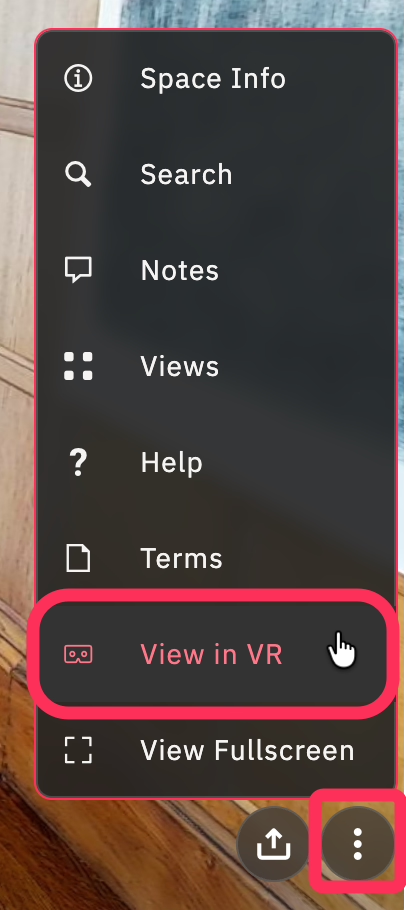
There are two ways to enter VR. You can send the tour to your headset from your browser, or open it directly from the headset itself.
Opening a tour in your browser (Meta Quest)
- Open the Matterport link you received for your tour in your browser.
- Click the three dots in the lower-right corner of the tour and choose View in VR.
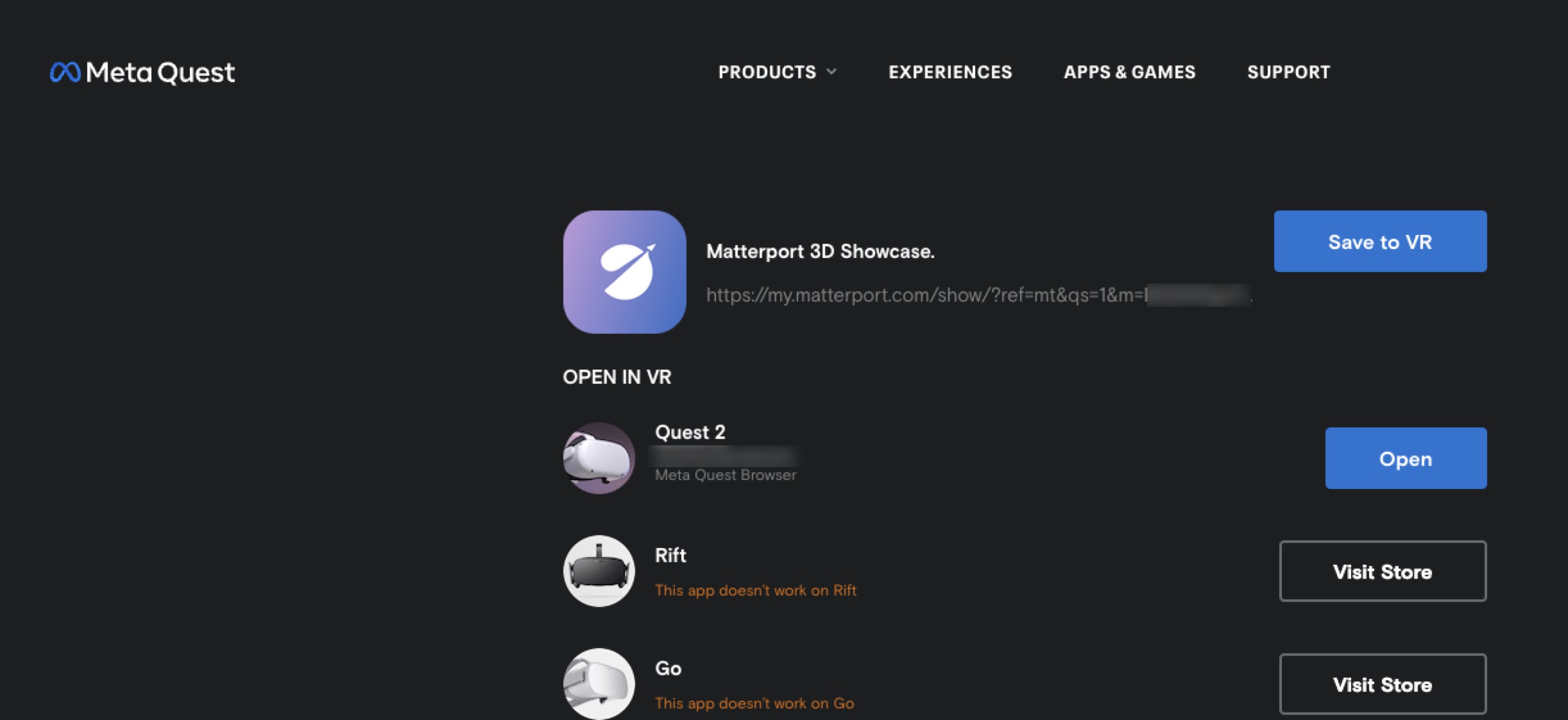
- In the window that opens, select Open in Quest.
- If you close that window and want to return to it later, just click the three dots > View in VR again.
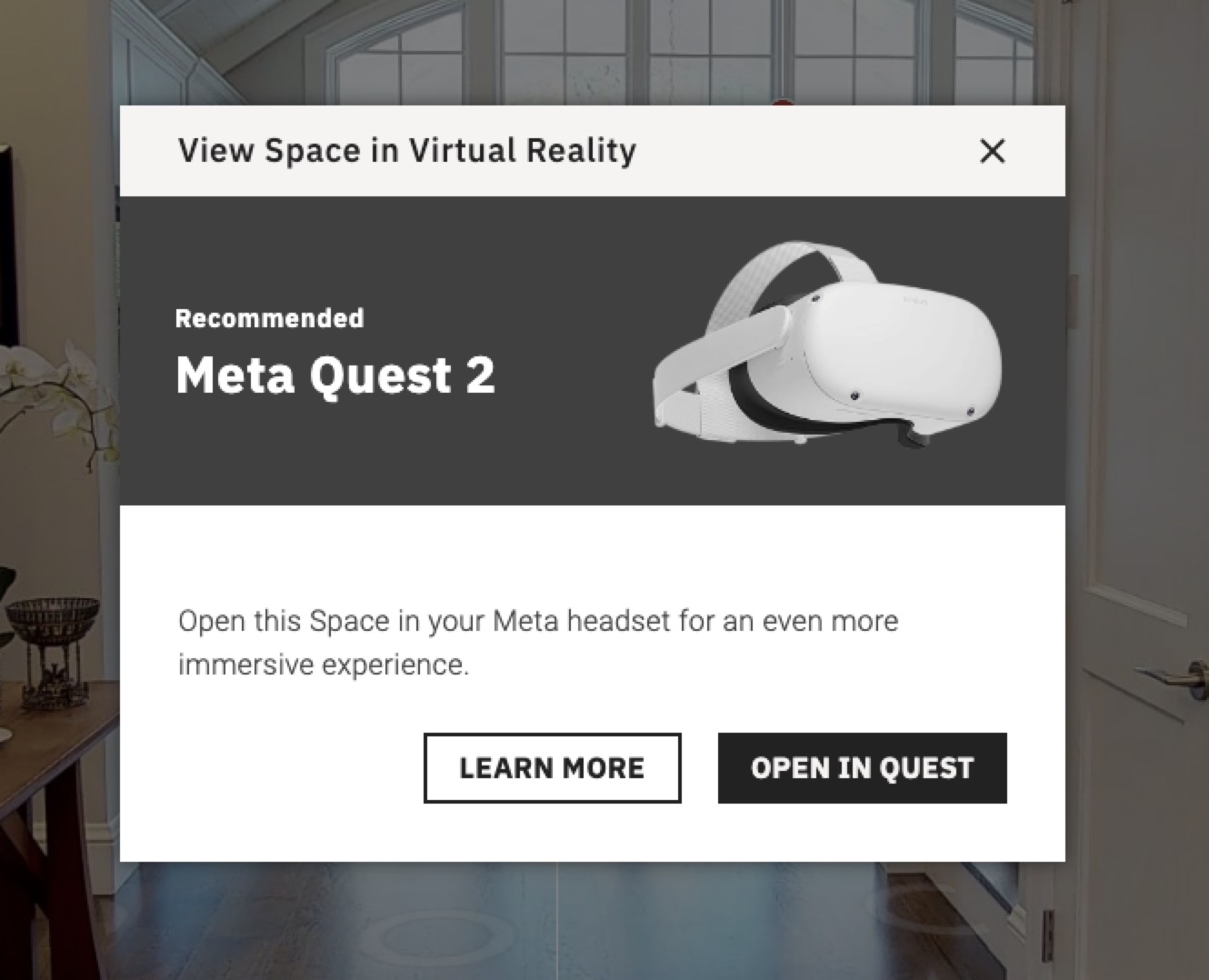
- If the Meta Quest app is installed on your device, it will open automatically.
- Tap Open Now to send the link straight to your headset.
- Or tap Save to VR to save it under Recently Saved in Quest (Explore > Recently Saved).
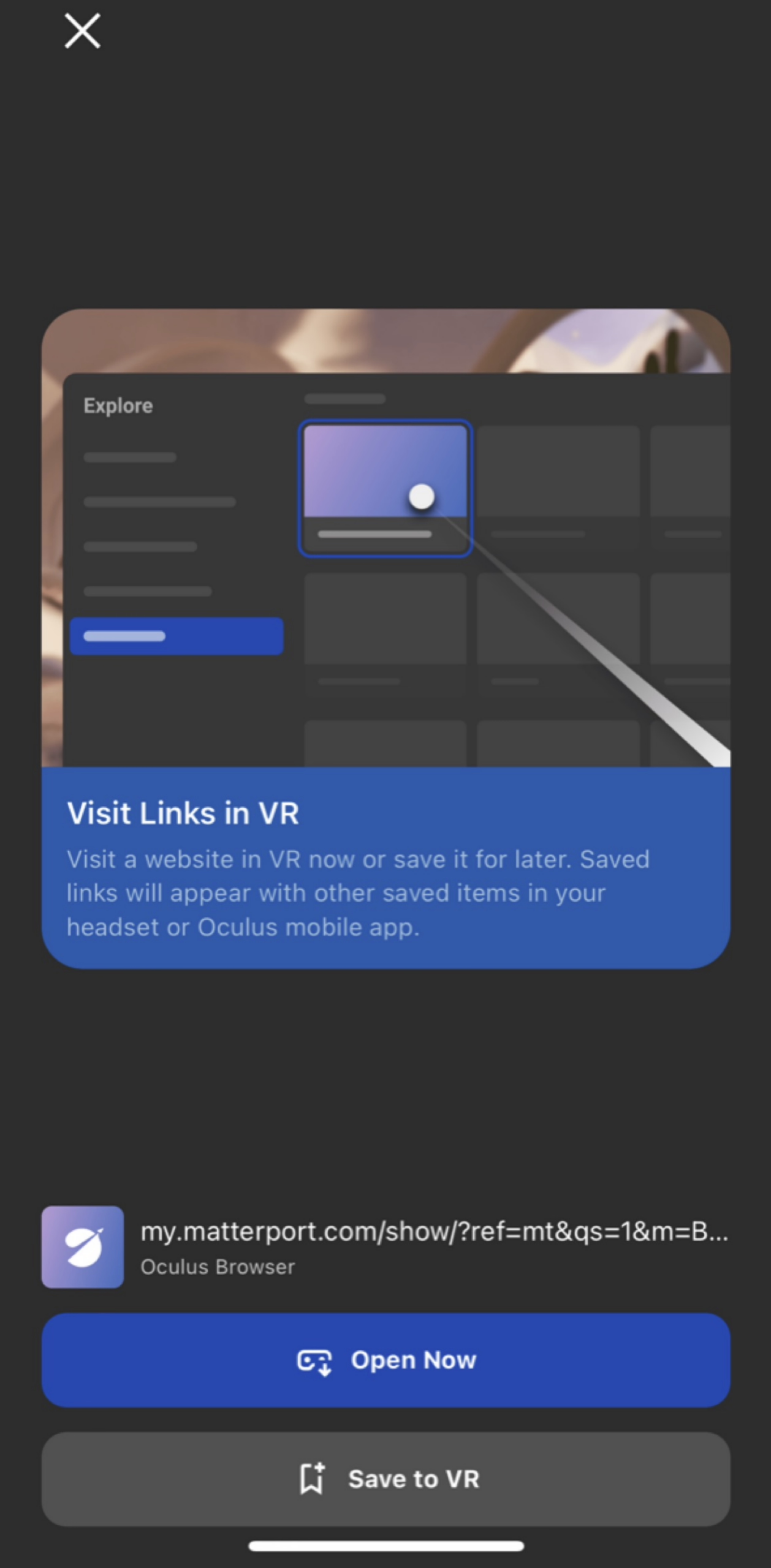
- If you don't have the Meta Quest app installed, the Open in Quest link opens the Meta login page in your browser instead. Log in, then choose Open to send the link to your headset, or Save to VR to save it for later.
- Put on your Meta Quest and power it on.
- Make sure the headset is connected to Wi-Fi.
- The browser app on your headset should now be open to the tour. Select Enter VR to step inside.
- You'll need to power on your Meta Quest and connect to the internet within ten minutes of sending the tour from the app or browser.
- You're now in VR. Select the circles on the floor to walk around, using your controller's trigger buttons.
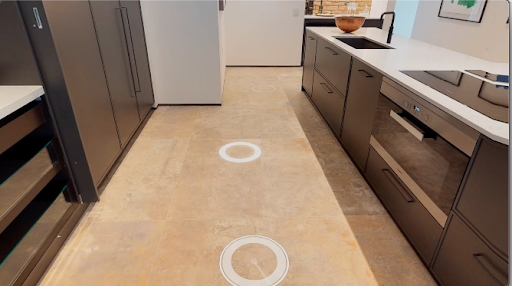
- If you're seated, you may prefer to use the thumbsticks to quickly rotate your view.
- When you're done exploring, press the Menu button on your controller to exit.
Opening a tour directly from a VR headset
To open a tour straight from your VR device.
- Power on your headset and put it on.
- Connect it to Wi-Fi if it isn't already.
- From the Home Screen, select Browser.
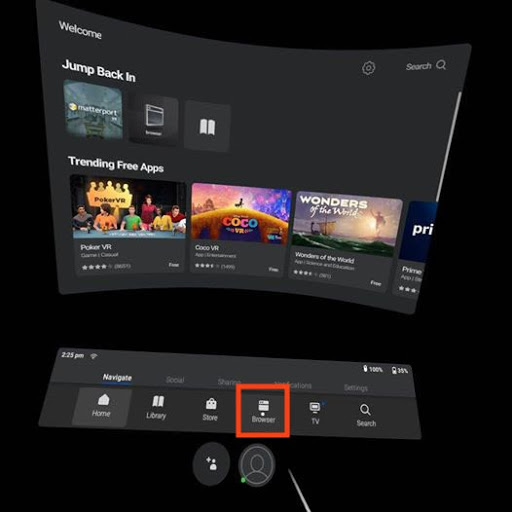
- Navigate to any tour, for example one of the following
- A tour already embedded on your website.
- A tour on Matterport Discover at discover.matterport.com.
- By logging in to your Matterport account at my.matterport.com.
- Once the tour has loaded, an Enter VR button will appear.
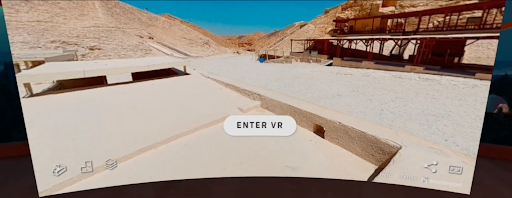
- Select Enter VR, you're now in VR.
- Select the circles on the floor to move around, using the trigger buttons.
- If you're seated, you can use the thumbsticks to rotate your view instead.
- When you're done, press the Menu button on your controller to exit.
Good to know, as mentioned above, tags, the floor selector, the floor plan/dollhouse view, and the measurement tool aren't available in VR mode, they remain fully accessible in the regular browser version of the tour.
Does the tour comply with privacy legislation (GDPR)?
Yes. Matterport provides tools to automatically blur faces and licence plates. We apply this as standard for recordings in public or semi-public spaces. For specific privacy requirements, we discuss the approach in advance to ensure the tour is fully GDPR-compliant.
Planning & Recording
How long does scanning my venue take?
We scan an average hotel or office in 4 to 6 hours. For large conference centres or complex buildings this can extend to a full day. We always schedule sufficient time so that no space is missed.
Does my venue need to be closed during the recording?
No, your venue does not need to be closed. We prefer to work in the early morning or during quiet periods to minimise any disruption to guests or staff. A recording outside opening hours is also possible by arrangement.
Can you also scan multiple locations, for a hotel chain?
Yes, we regularly work for chains and groups with multiple locations. We plan an efficient scan route and deliver all tours in a consistent format. For framework agreements with fixed rates, please get in touch with us.
How should the venue be prepared before the recording?
The Matterport Pro3 camera captures every detail, dirt, dust, and clutter are clearly visible in a 360° recording. Make sure floors, furniture, windows, and glass surfaces are thoroughly clean. Tidy away loose items such as bags, cables, temporary signage, and personal belongings, which should not be in shot.
Arrange furniture and decorations exactly as you wish to present them. Straight artwork on the walls, well-made beds, and neatly arranged chairs make an immediate difference to the final quality of the tour.
In what order are the rooms scanned?
We always scan from bottom to top, from the ground floor to the top floor. This is required for a correct construction of the 3D model and ensures a logical navigation structure within the tour. Stairwell connections are scanned carefully so that all floors connect seamlessly.
Agree in advance which spaces will and will not be included, so the scan route is efficient and complete.
Does technical staff need to be present during the recording?
Yes, we ask you to have a technical contact person on standby during the recording. Lighting plays a crucial role in image quality, faulty or flickering bulbs, failed spotlights, or non-functioning ambient lighting must be able to be fixed immediately. A maintenance technician or facilities staff member with access to technical rooms and the fuse box is essential for this.
Also ensure that all light switches are accessible and that you inform us in advance about any spaces with special lighting installations.
What do I need to arrange regarding lighting for the recording?
Switch on all available light sources such as ceiling lights, wall lamps, ambient lighting and accent lighting. Replace any blown or flickering bulbs beforehand, the camera picks up inconsistencies in colour and brightness immediately. Also open curtains and blinds to make the most of natural daylight.
Digital screens such as TVs and displays are best left on with a clean, static image or your house-style screensaver. A blank or dark screen stands out in an unwanted way in the tour.
How do I inform my staff and guests about the recording?
Inform your staff and guests well in advance of the recording date. People should remain outside the camera's field of view during a scan, as this avoids the need for edits afterwards. Agree a route so staff can move from room to room without disrupting the scan sequence.
Also remove any visible personal information, such as name badges, notes, passwords written on whiteboards, and unlocked computer screens showing sensitive data.
Can people or unwanted objects be removed from the tour?
No. A Matterport 3D tour is not a photo that can be edited afterwards, whatever the camera captures becomes part of the tour. People, objects or unwanted elements visible during the recording remain visible in the final result. We do not offer photoshopping or retouching services.
What we can do is automatically blur faces and licence plates for privacy purposes. This is the only post-processing possible on the 3D model itself. The golden rule is therefore to make sure the venue looks exactly as you want to present it during the recording. What you see is what you get.
Pricing & Add-ons
What does creating a virtual tour cost?
We always work with a fixed, tailored quote, no hourly rates, no surprises afterwards. The price is determined by the size and complexity of the venue, the number of spaces and floors, the travel distance, and any add-ons.
As a guide, a small location starts from €750, and an average hotel or conference venue typically ranges from €1,500 to €4,500. See our full pricing page for a detailed breakdown by location type.
Request a no-obligation quote via our contact form. You will receive an indication the same working day.
What does creating a floor plan cost?
Matterport automatically generates a schematic floor plan as part of the tour. If you would like a formatted, print-ready floor plan for a brochure or event proposal, we provide this as an add-on. The price depends on the complexity and the desired level of detail.
What is the CAD files package?
With the CAD files package you receive the 3D model as an editable CAD file (DWG/DXF/RVT), suitable for use in AutoCAD, Revit, or similar design software. Valuable for architects and project developers who use the scan as a basis for renovation plans or technical drawings.
Hosting & Management
How long does it take before my tour is live?
After the scan, we process the data within 3 to 5 working days. You will then receive the embed code and a direct link so you can immediately publish the tour on your website, in presentations, or via social channels.
Where is the tour hosted?
All tours are hosted on Matterport's secure servers. You do not need to arrange any hosting yourself. We offer annual maintenance contracts to keep your tour accessible and up to date.
What if my venue is renovated at a later stage?
We can update the tour after a renovation or refurbishment. You only pay for the new scan of the modified spaces. For venues that change regularly, we offer maintenance contracts with fixed rates and turnaround times.
Popular questions
What people ask us most